
Lenovo® Patch for SCCM
Thank you for choosing Absolute®. Follow the steps below to configure the self-healing of Lenovo Patch, enabled through Absolute Application Persistence™ for Microsoft® SCCM.
Why persist Lenovo Patch (now known as Microsoft Endpoint Configuration Manager or MEMCM)?
With Lenovo Patch, you ensure that the latest BIOS and driver updates for your Lenovo devices are deployed seamlessly. As the tool is hosted within Microsoft’s System Center Configuration Manager (SCCM), SCCM’s client and architecture must be operating and healthy for Lenovo Patch to function. The self-healing of SCCM ensures that the SCCM client software is operating as expected on endpoints to allow the plugin to deploy the latest updates across your device fleet.
SCCM Self-Healing
The self-healing of the SCCM client includes the ability to report on the client’s health status and to automatically remediate it in cases of non-compliance. This self-healing capability leverages Absolute’s patented Persistence technology, embedded in the firmware of devices shipped by Lenovo.
Configuration of Persistence for SCCM
1. Deploy Absolute
If you are a new Absolute customer, you first need to setup your account, activate the agent and verify your devices. Follow our step-by-step guide to get started by visiting the appropriate link below. You will need to login to your Absolute account to view the guide: CADC customers | USDC customers
2. Select Policies Menu
After logging into the Absolute console, click on the “Policies” icon on the left-hand panel of the console.
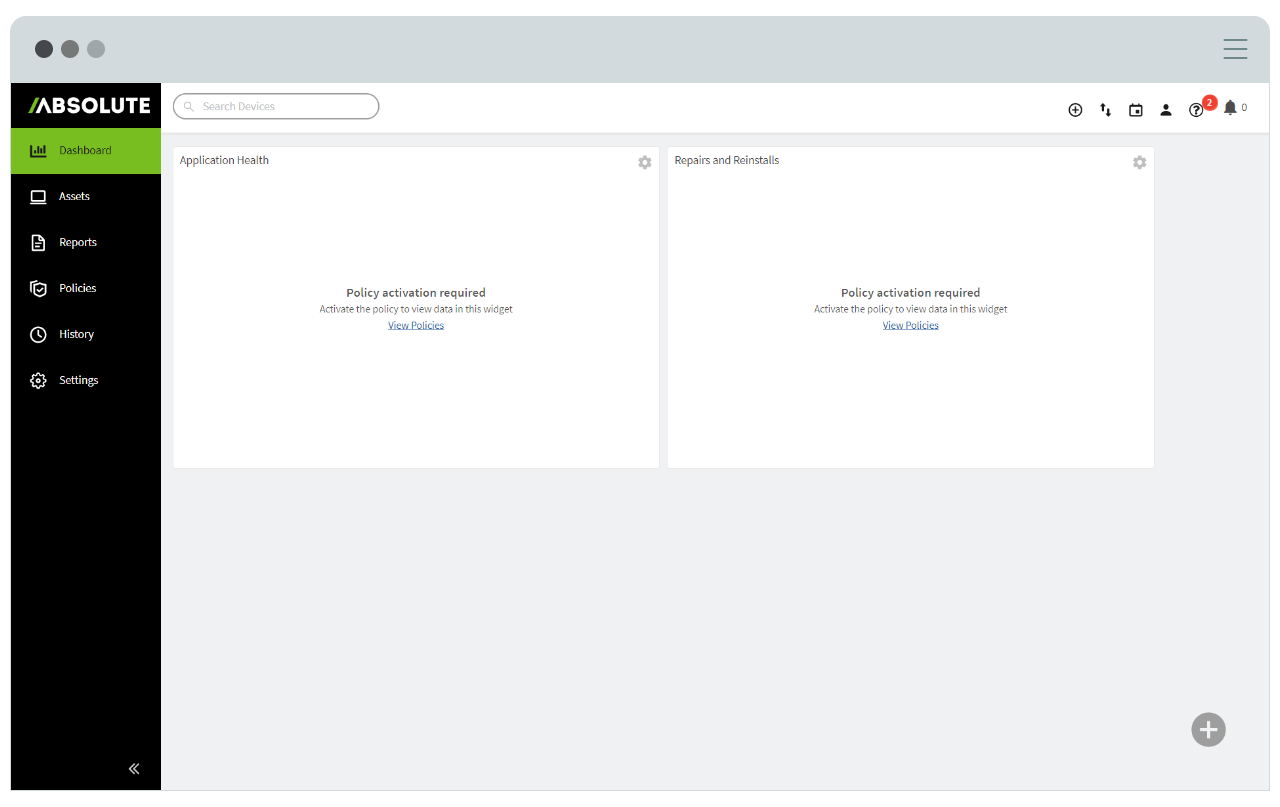
3. Select Policy Group
On the “Policies” page, select the “Policy Groups” tab and choose the specific Policy Group you wish to activate Application Persistence on (in the image below, the “Global Policy Group” is selected). Then, click on “Configure” next to Application Persistence, as shown below.
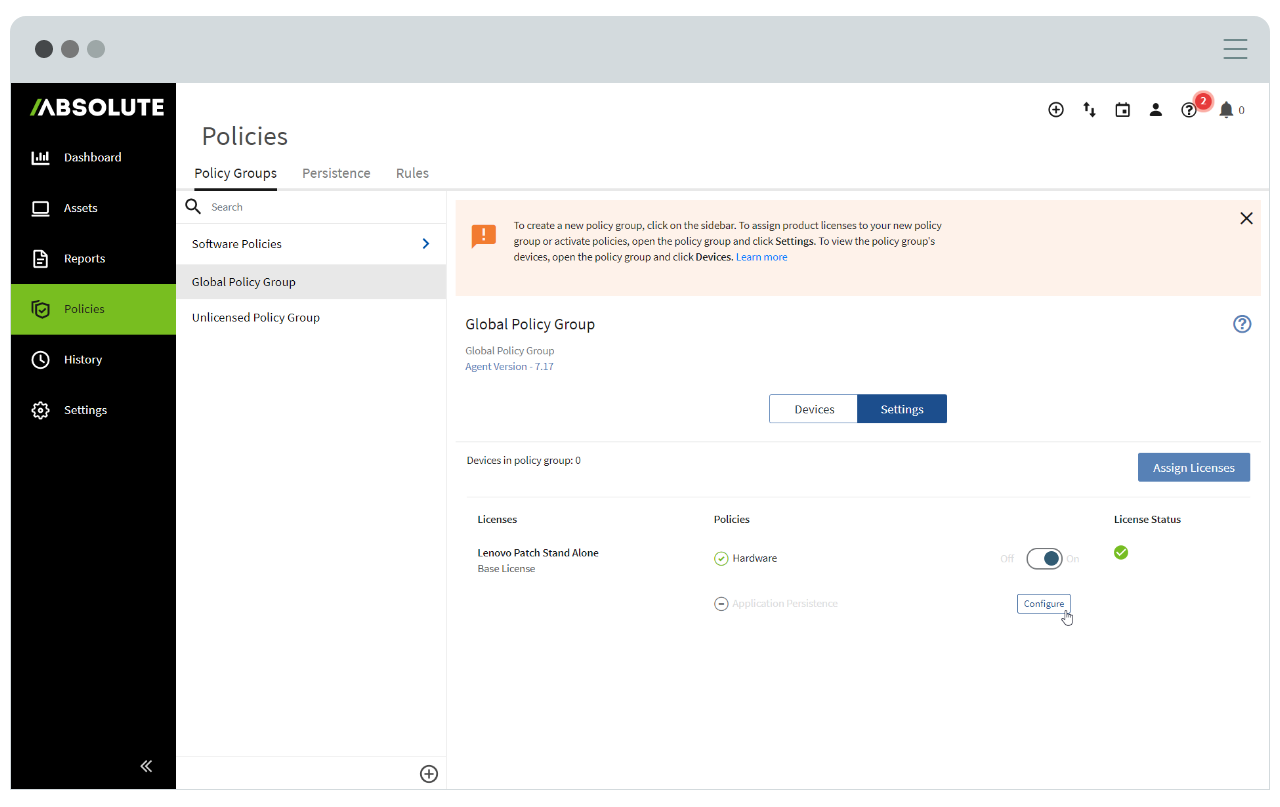
4. Configure Application Persistence
Once the “Configure Application Persistence” window appears, select “Configure” under the “Action” column.
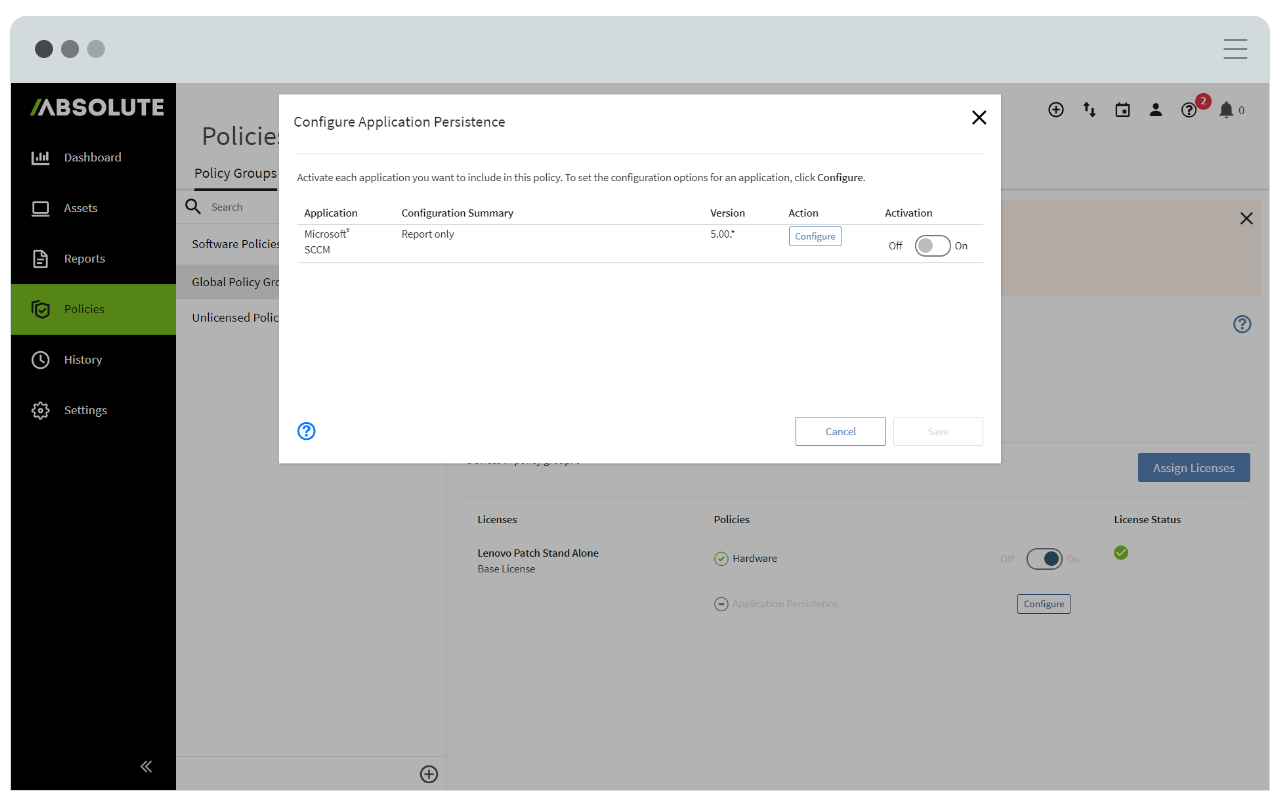
5. Configure Persistence for SCCM
In the policy configuration window for Microsoft SCCM, you have the option of configuring how the SCCM client will be persisted. You can select between three modes of persistence: a) Report Only, b) Report and Repair and c) Report, Repair and Reinstall.
a) Report Only: Monitors the health of the SCCM client across your Lenovo devices and displays heath information through the Application Persistence Report.
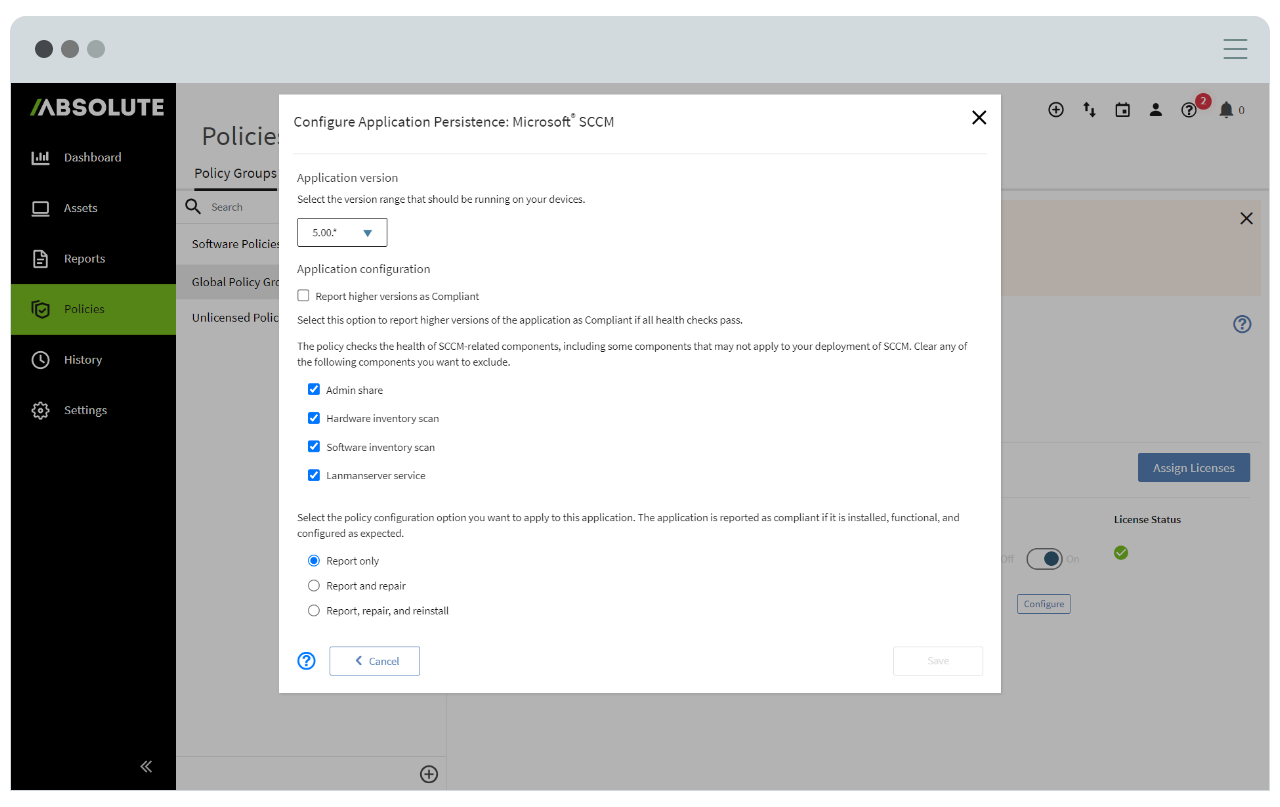
b) Report and Repair: In addition to monitoring the health of the SCCM client, this mode takes the added step of attempting to repair unhealthy instances of the SCCM client. The repair process includes, but is not limited to, repairing corrupt components, restarting non-functioning services and processes and running the cached MSI installer.
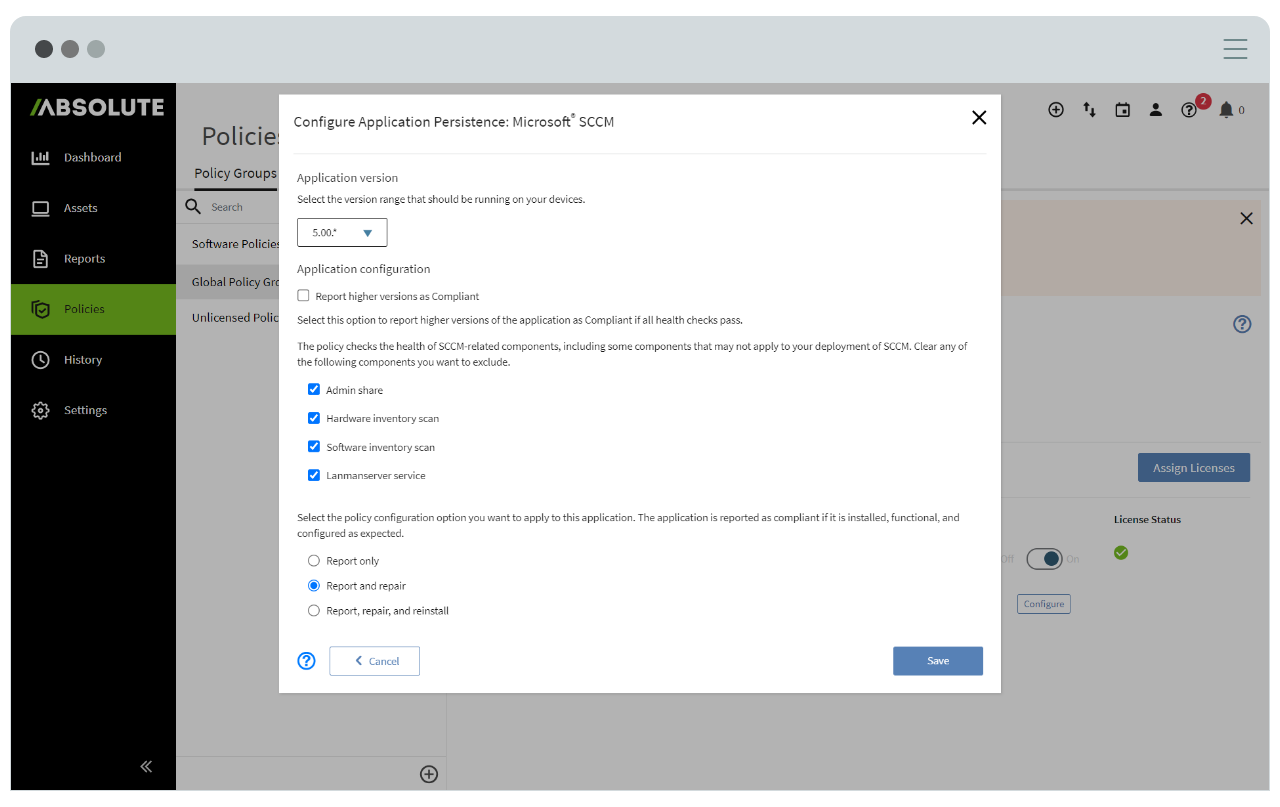
c) Report, Repair and Reinstall: Through this selection, the Application Persistence engine downloads the SCCM client installer from an external source provided by the user and reinstalls the client if the Repair process was unsuccessful. The user is required to provide an external URI that hosts the SCCM client installer as well as the Hash-256 code for the Application Persistence engine to verify the installer’s components before running it. The user does not need to upload a configuration file for the SCCM client installer.
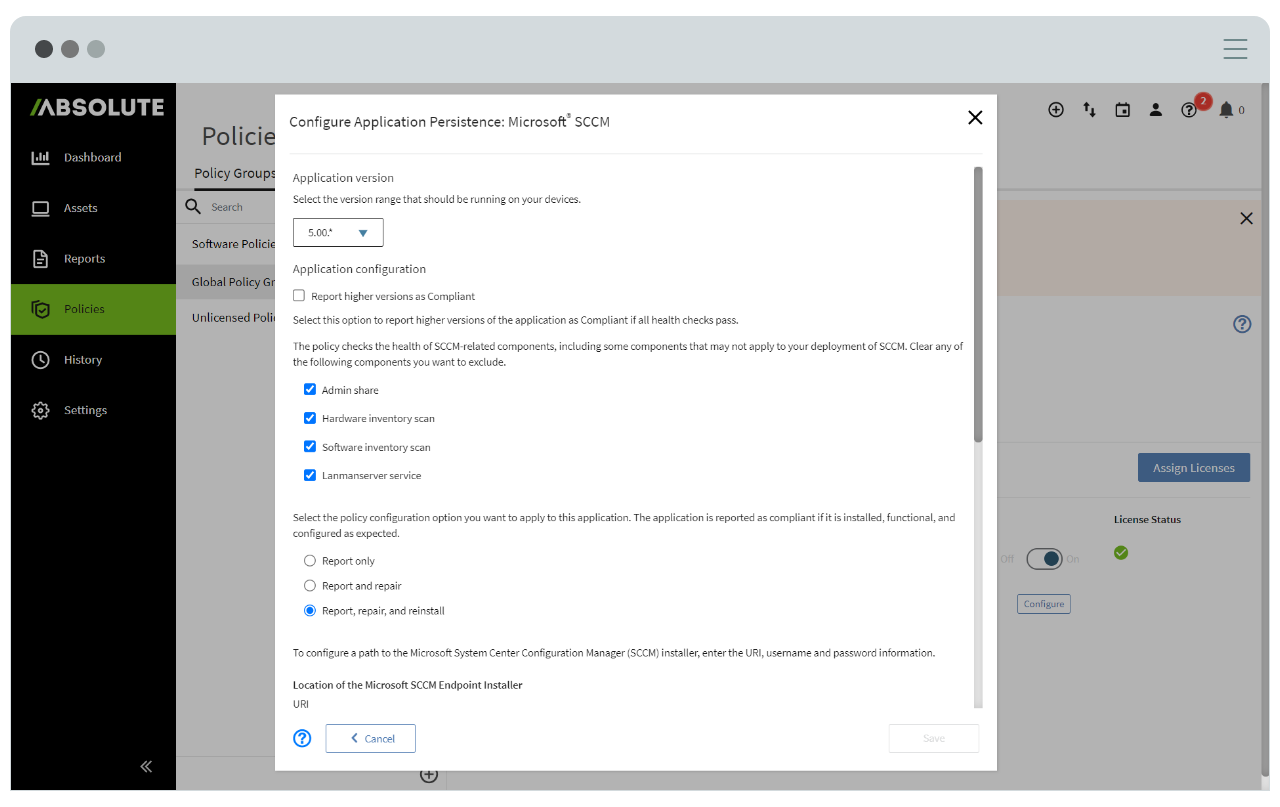
Follow these steps to copy the installer in the right format to the URI location:
- On the SCCM Server, navigate to the following location:
C:\Program Files\Microsoft Configuration Manager\Client - Select all files and folders in the Client folder and add them to a new zip file.
IMPORTANT: Do not include the Client folder in your zip file; only include its contents. - Copy the zip file to the location where you want to store the installer. You can host the installer on any web server. Both HTTP and HTTPS protocols are supported.
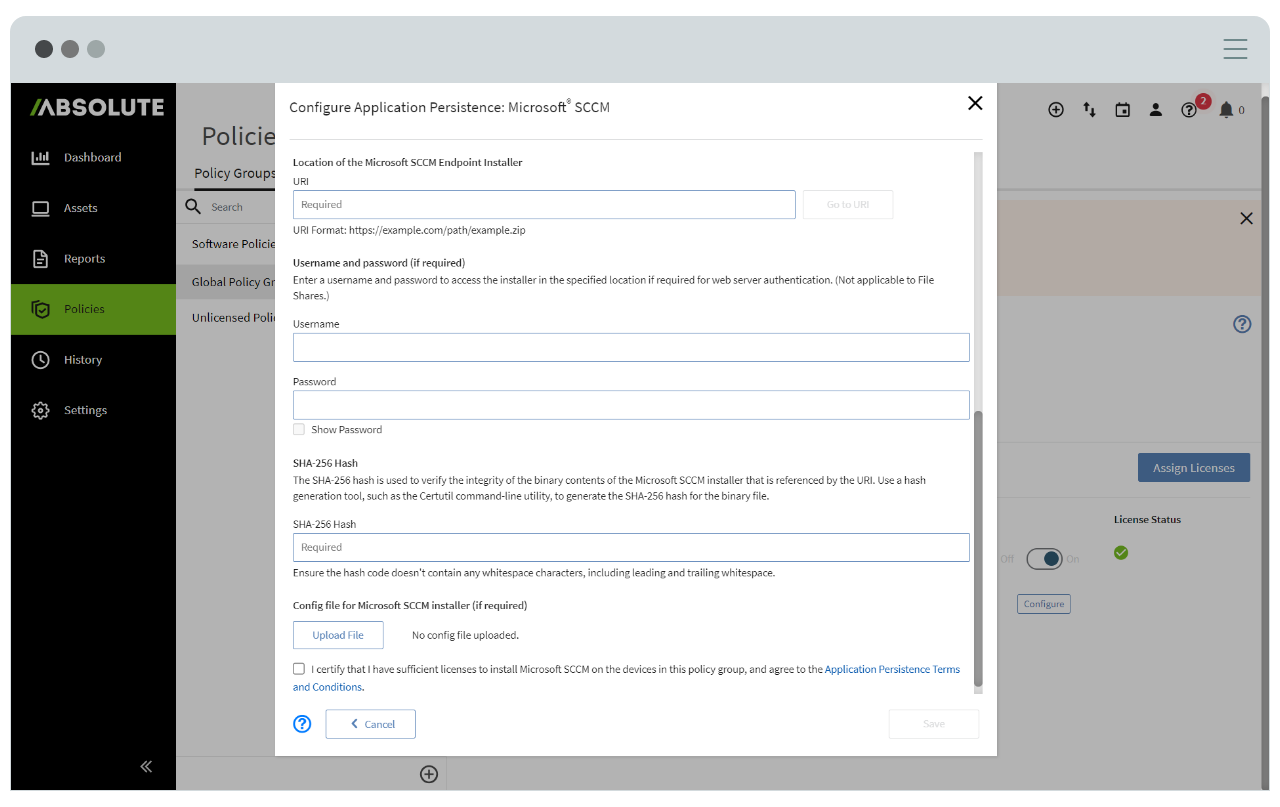
Note: For all three modes (i.e. a) Report Only, b) Report and Repair, and c) Report, Repair and Reinstall), the user has the option of excluding the four components from being monitored and remediated: Admin share, Hardware inventory share, Software inventory share and LanmanServer service.
6. Activate Policy
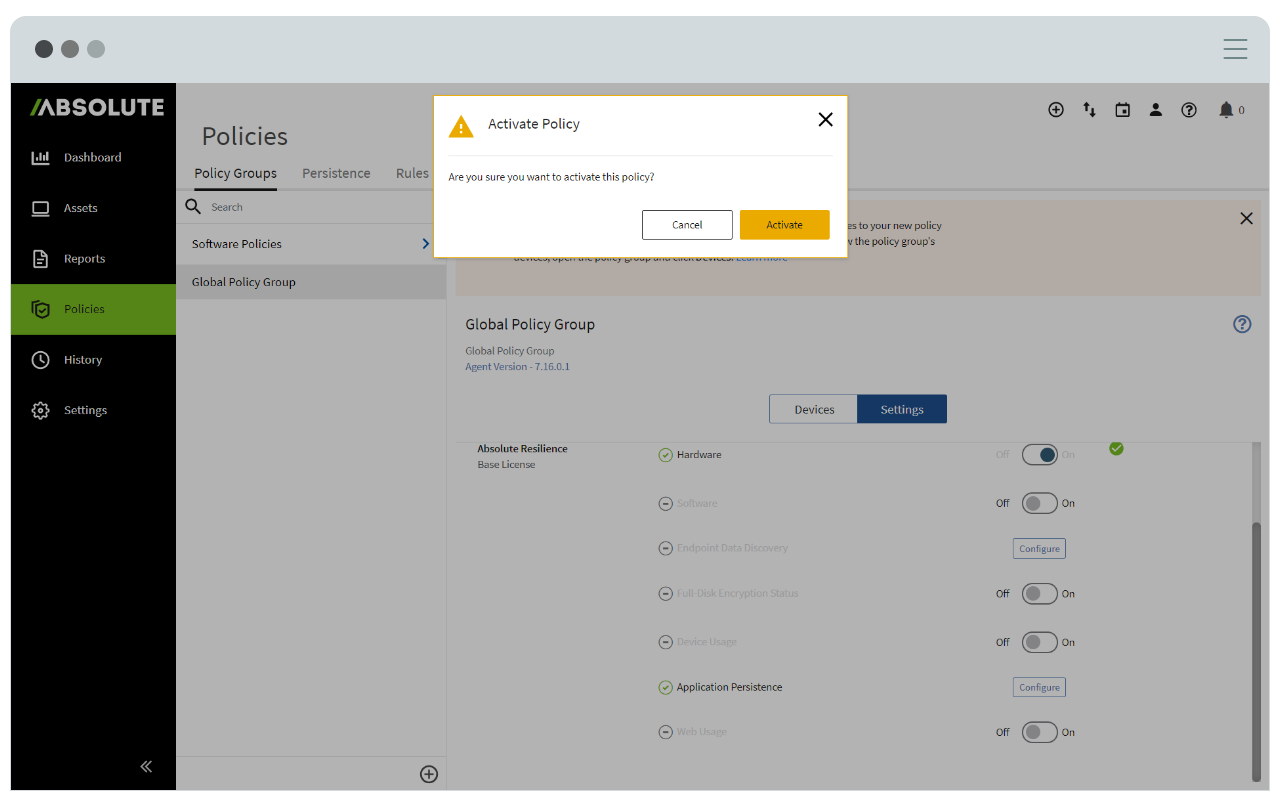
After selecting one of the three modes listed in step 5, check the box to accept the Application Persistence Terms and Conditions and click “Save”. On the “Configure Application Persistence” window, toggle the selection button under “Activation” from “Off” to “On”. Then, click on “Activate” as shown below.
7. Manage Supervisor Password
Your Lenovo Patch for SCCM license also includes Lenovo Remote Supervisor Password (RSVP), enabling you to set or manage the BIOS supervisor password across your endpoints. View the following Knowledge Base article to verify if the feature is supported across your specific Lenovo device models.
Application Persistence for SCCM Reports
You can view detailed information about the health of the SCCM client on devices that have Application Persistence enabled by following the steps below.
1. Select Reports Icon
Select the “Reports” icon on the left-hand pane of the console.
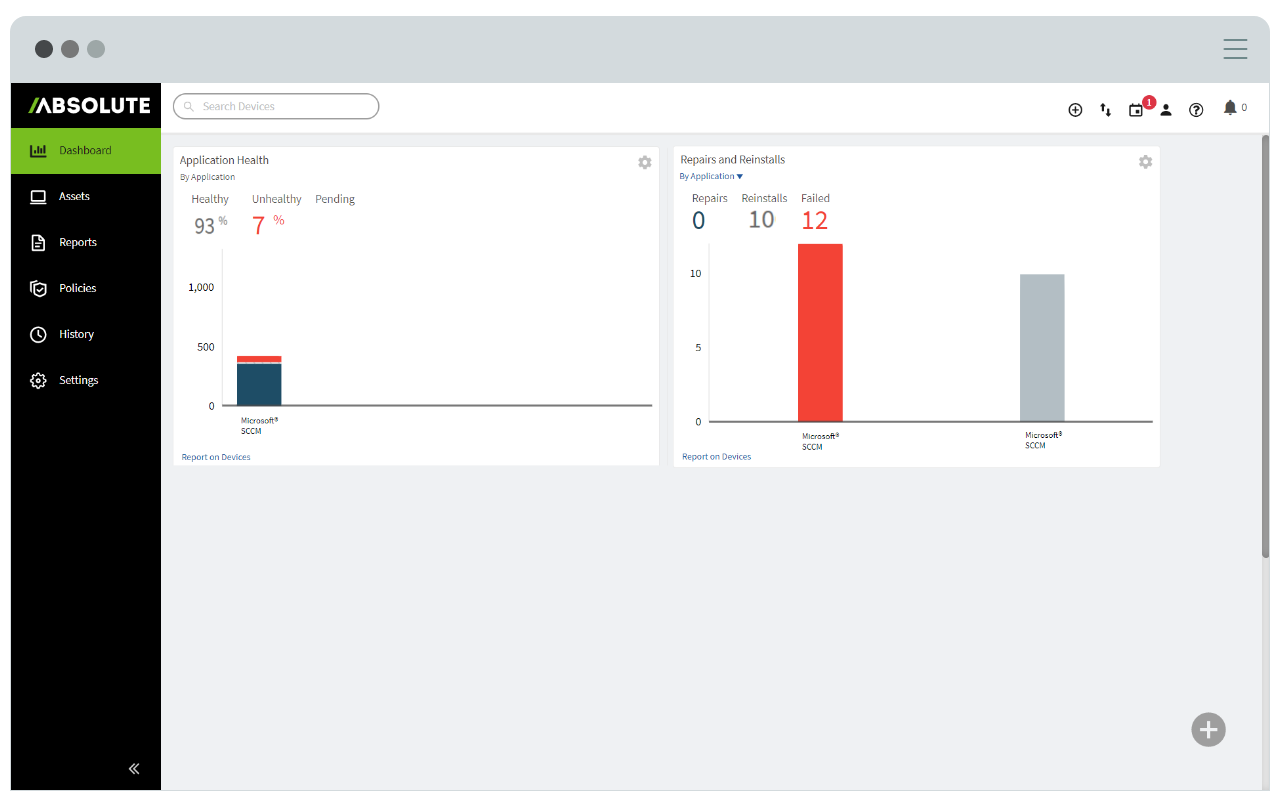
2. Select Application Persistence Report
Select the “Application Persistence” report listed under “Software Assets” to view information about the current status of the SCCM client across your devices.
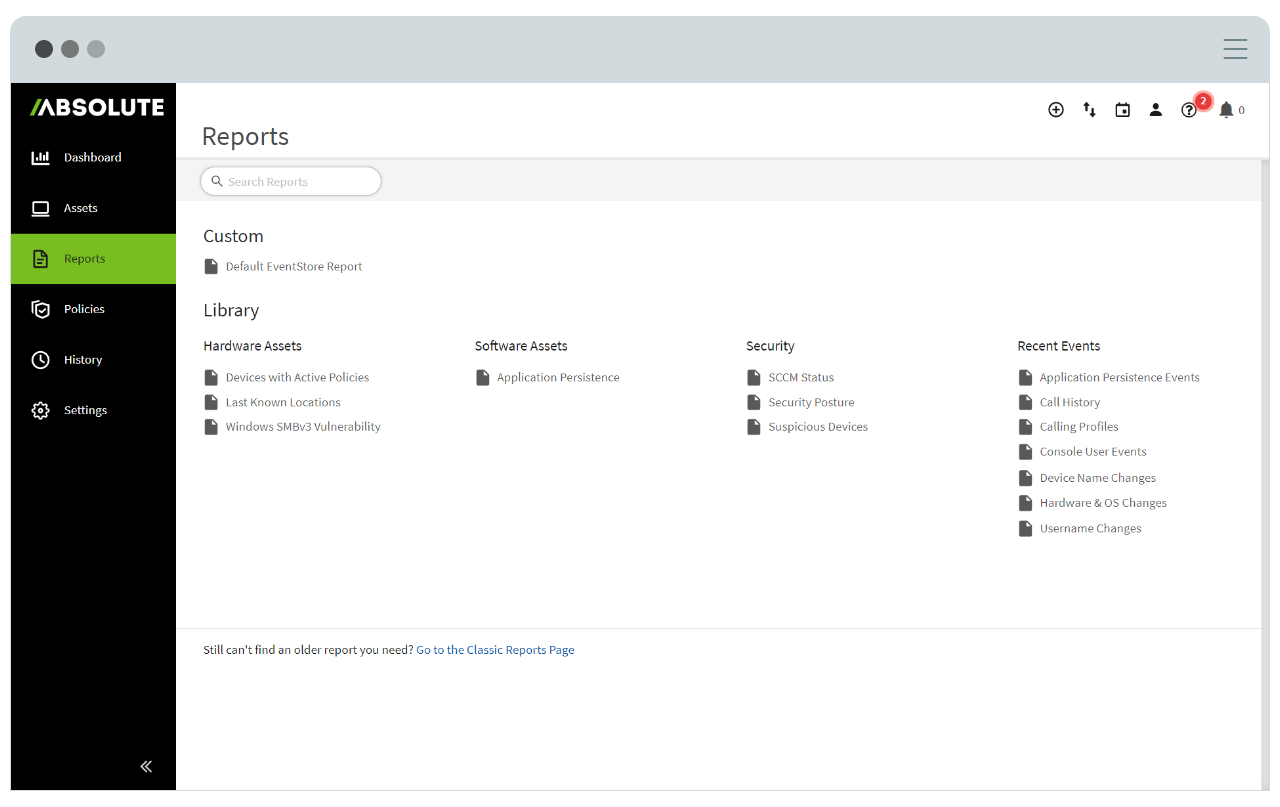
The Application Persistence Report provides information about the current status of the SCCM client on devices as well as detailed information on any repair or reinstall attempts made to remediate corrupted clients.
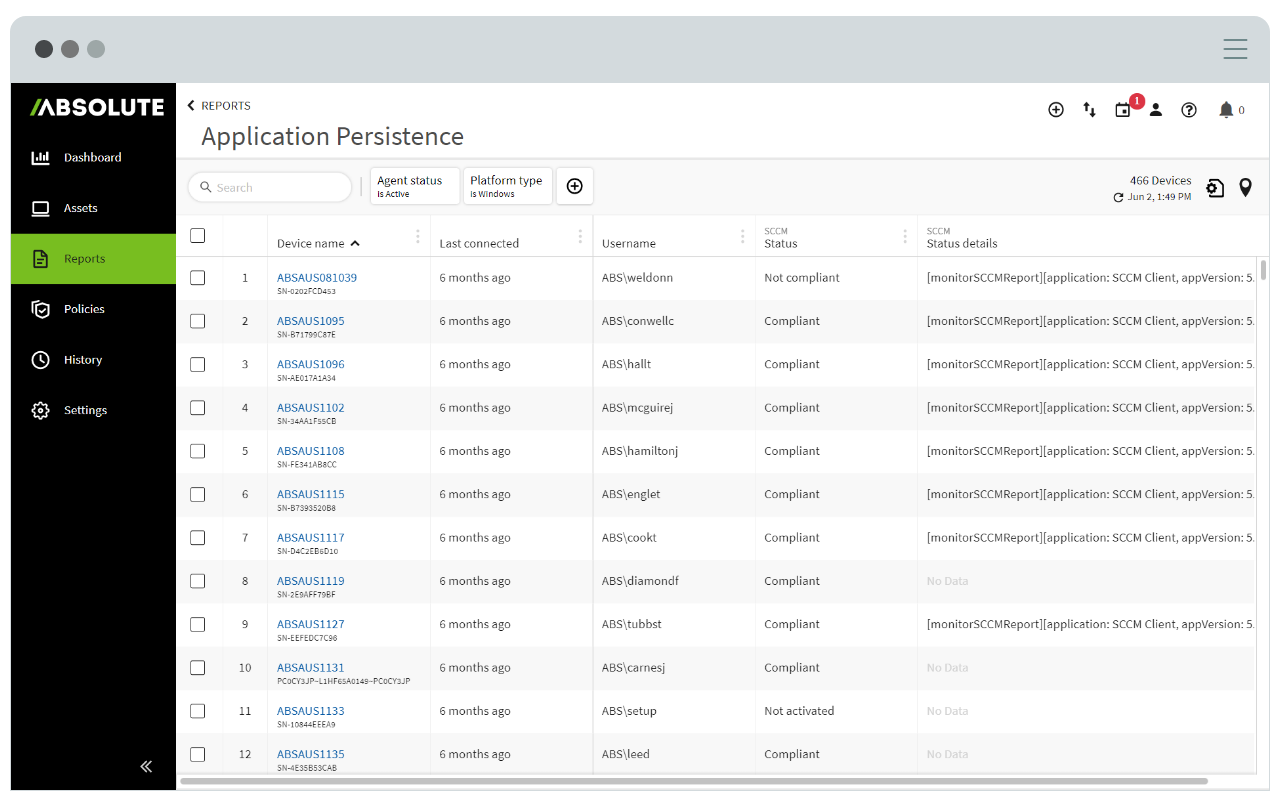
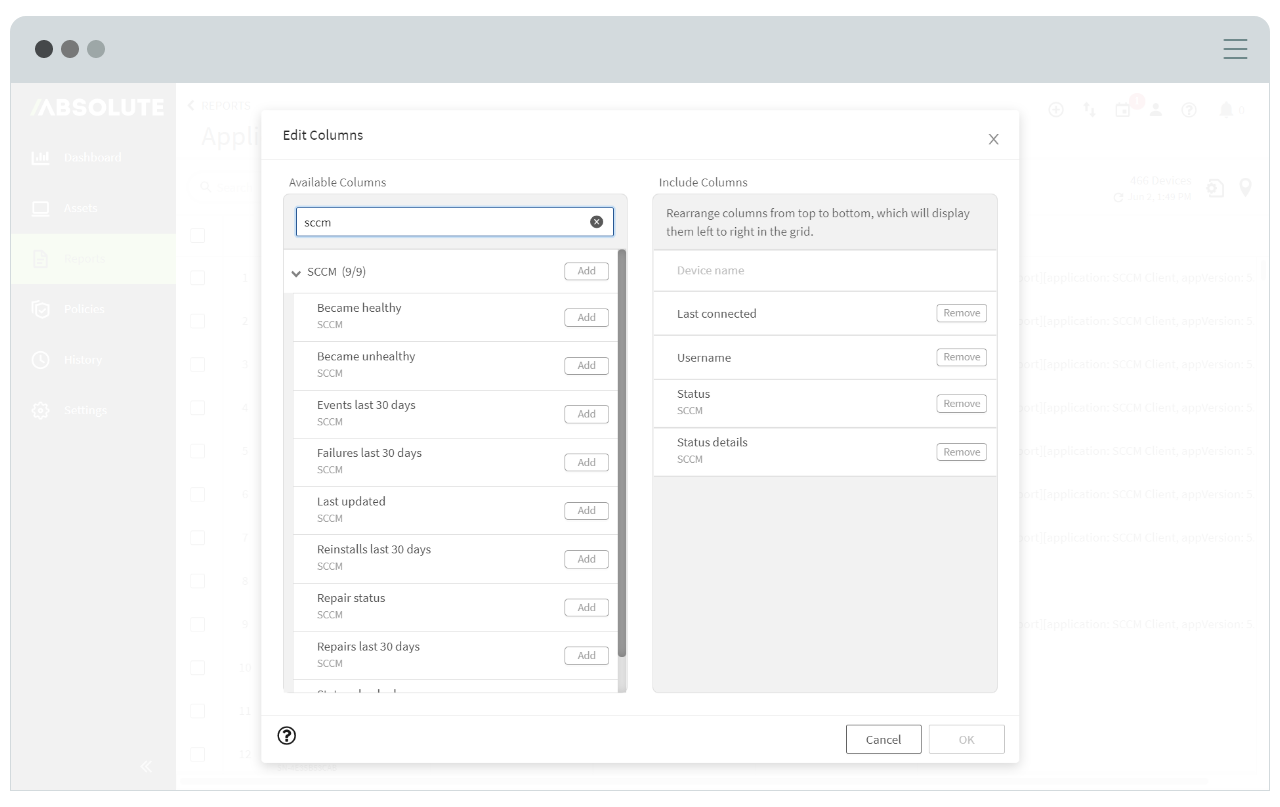
3. Customize Application Persistence Report
You can modify the report’s columns by selecting the “Edit Columns” option on the “Settings” icon located on the top right-hand side of the window. Through this, choose to view only SCCM specific columns by dragging them to the “Include Columns” section of the window, as shown below.
4. Access More Resources
For additional queries about Lenovo Patch or Application Persistence for SCCM, contact Absolute Support.
Visit Absolute Resources to learn more about Absolute’s Endpoint Control and Resilience capabilities.
Contact your Sales representative or email sales@absolute.com to upgrade to an Absolute Control or Resilience license.